RK61 Keyboard Manual: A Comprehensive Guide
This comprehensive guide details the Royal Kludge RK61, offering instructions for setup, customization, and troubleshooting, ensuring optimal performance for all users.
The RK61 is a compact, 61-key mechanical keyboard designed for both gaming and everyday use. It’s lauded as an excellent solution for modern work and living spaces, prioritizing portability and efficiency. This keyboard distinguishes itself with versatile connectivity options – USB, Bluetooth, and even 2.4G wireless – catering to diverse user preferences.

Royal Kludge’s RK61 is particularly appealing due to its QMK/VIA compatibility, allowing for extensive customization of keymaps and functions. Whether you’re a seasoned gamer or a productivity enthusiast, the RK61 aims to deliver a tailored experience. This manual will guide you through every aspect of the RK61, from initial setup to advanced programming, ensuring you unlock its full potential.
Unboxing and Initial Setup
Upon receiving your RK61, carefully inspect the packaging for any signs of damage. Inside the box, you should find the RK61 keyboard itself, a USB-C cable for wired connectivity, and potentially keycap pullers or additional keycaps depending on the bundle. Before first use, it’s recommended to fully charge the keyboard, even if it appears to have some initial charge.
Connect the RK61 to your computer using the provided USB-C cable. The keyboard should be automatically detected by your operating system. For Bluetooth pairing, refer to the ‘Connectivity Options’ section later in this manual. Ensure the keyboard is switched on using the power toggle located on the side or bottom of the device. Initial setup is straightforward, designed to simplify your experience.
Keyboard Layout and Keycaps
The RK61 features a 61-key compact layout, designed for portability and space-saving. Familiarize yourself with the key arrangement, noting the placement of function keys and navigation cluster. The keyboard supports multiple layouts, selectable via software or key combinations – check the function key combinations section for details.
The RK61 typically comes with ABS or PBT keycaps. These are easily removable using a keycap puller (often included). Replacing keycaps allows for personalization and customization. Be gentle when removing and installing keycaps to avoid damaging the switches. The keyboard is compatible with standard keycap profiles, offering a wide range of aftermarket options for a unique aesthetic and feel.
Connectivity Options
The RK61 offers versatile connectivity, supporting both wired USB and wireless Bluetooth connections. This flexibility allows you to adapt to various usage scenarios. For a stable, low-latency connection, utilize the included USB-C cable. Bluetooth pairing provides freedom from cables, ideal for mobile setups. The RK61 supports pairing with multiple devices, enabling seamless switching between your computer, tablet, or smartphone.
Different RK61 models may also include 2.4G wireless connectivity. Refer to the technical specifications to confirm your model’s capabilities. Ensure your device is discoverable when attempting Bluetooth pairing. Detailed instructions for each connection method are provided in the following sections.
USB Connection Guide
Establishing a USB connection with your RK61 is straightforward. Simply connect the provided USB-C cable to the keyboard’s USB-C port and the other end to an available USB port on your computer. The keyboard should be automatically recognized by your operating system without requiring additional drivers.
Once connected, the keyboard is ready for immediate use. This connection method provides a stable and reliable link, ideal for gaming or tasks requiring precise input. Ensure the cable is securely connected at both ends to prevent intermittent disconnections. The USB connection also powers the keyboard, eliminating the need for battery management during use.
Bluetooth Pairing Instructions
To connect your RK61 via Bluetooth, first, ensure the keyboard is powered on. Press and hold the Fn + Bluetooth key (often labeled with a Bluetooth symbol) until the Bluetooth indicator light begins flashing. On your computer or device, navigate to the Bluetooth settings and initiate a scan for available devices.
The RK61 should appear in the list of detected devices. Select it to begin the pairing process. You may be prompted to enter a pairing code; if so, try “0000” or consult the keyboard’s documentation. Once paired, the Bluetooth indicator light will become solid. Remember the RK61 can store multiple paired devices, allowing for quick switching between them.
Backlight Customization
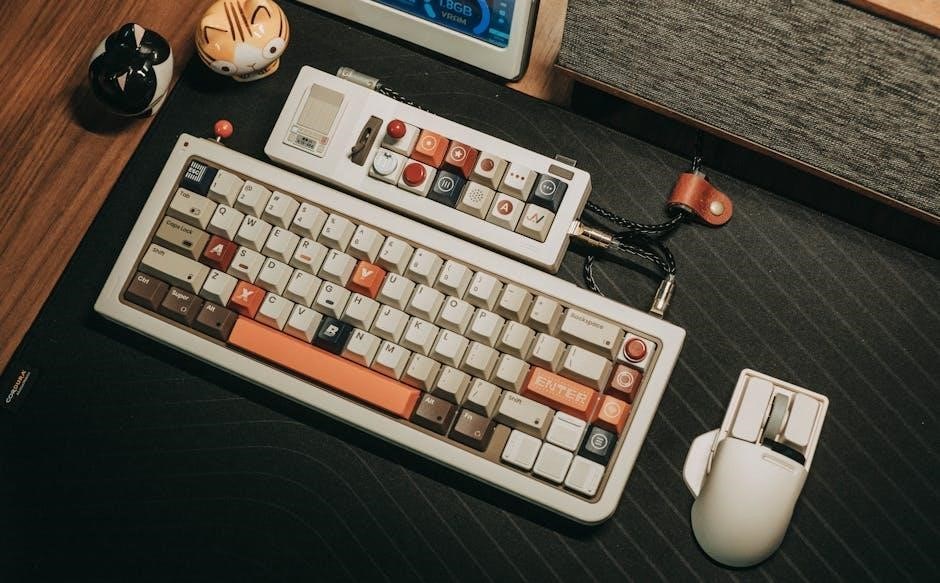
The RK61 offers extensive backlight customization options to personalize your typing experience. Access these features using Function key combinations. You can cycle through 17 pre-set backlight modes, including static colors, breathing effects, and wave patterns, by pressing Fn + Backlight key. Adjust the brightness levels to suit your environment; typically, Fn + Up/Down arrow keys control brightness.
Furthermore, you can modify the speed of dynamic backlight effects. Experiment with different combinations to find your preferred settings. Some RK61 models feature RGB backlighting, offering a wider spectrum of colors and customization possibilities. Refer to the function key guide for specific commands related to your keyboard variant;
Switching Between Backlight Modes
To cycle through the RK61’s 17 pre-set backlight modes, press and hold the Fn key, then repeatedly press the Backlight key (often depicted as a lightbulb). Each press will transition to the next available mode. These modes encompass static color options, dynamic effects like breathing, wave, and reactive lighting, and potentially more specialized patterns depending on your specific RK61 model.
Observe the keyboard’s illumination to preview each mode before settling on your preference. If a particular mode isn’t desired, continue cycling until you find one that suits your aesthetic. Remember to consult the function key guide for a complete list of available modes and their corresponding order.
Adjusting Backlight Brightness and Speed
The RK61 allows for customization of both backlight brightness and speed, enhancing your visual experience. To adjust brightness, press Fn + Up Arrow to increase and Fn + Down Arrow to decrease. Multiple levels of brightness are available, ranging from off to maximum intensity. For modes featuring dynamic effects, like breathing or wave, you can control the speed.
Use Fn + Left Arrow to slow down the effect and Fn + Right Arrow to speed it up. Experiment with different combinations to find the perfect balance between brightness and speed that complements your environment and personal preference. These adjustments provide a tailored lighting experience.
Programming and Customization (QMK/VIA Compatibility)
The RK61 boasts compatibility with QMK and VIA, unlocking extensive programming and customization options. QMK firmware allows for deep-level control over keyboard behavior, enabling remapping of keys, creation of macros, and advanced functionality. VIA Configurator provides a user-friendly graphical interface for modifying keymaps without needing to reflash the firmware.
This means you can personalize the RK61 to perfectly suit your workflow and gaming needs. Explore the QMK documentation and VIA software to discover the full potential of your keyboard. Benefit from a vibrant community and readily available resources for creating unique keyboard experiences.
QMK (Quantum Mechanical Keyboard) Firmware is an open-source keyboard firmware that allows for extensive customization. It’s the foundation for unlocking the RK61’s full potential, offering granular control over every aspect of your keyboard’s functionality. Unlike standard keyboard firmware, QMK enables key remapping, macro creation, and complex layer configurations.
Essentially, it transforms your RK61 from a simple input device into a highly personalized tool. While it requires some technical understanding, the benefits are substantial. The QMK community provides ample documentation, examples, and support to guide you through the process of building and flashing custom firmware. Explore the possibilities and tailor your keyboard precisely to your needs!
Using VIA Configurator
VIA Configurator is a user-friendly, graphical interface built on top of QMK Firmware, simplifying the customization process for your RK61. It allows you to remap keys, create macros, and adjust lighting effects without needing to delve into complex code. Simply connect your RK61 to your computer, launch VIA, and the software will automatically detect your keyboard (if properly flashed with VIA-compatible firmware).

VIA provides a visual representation of your keyboard layout, making it intuitive to modify. Changes are applied in real-time, allowing for immediate testing and refinement. It’s an excellent starting point for those new to QMK, offering a powerful yet accessible way to personalize their typing experience. Download VIA from the official QMK website.
Troubleshooting Common Issues

Encountering problems with your RK61? This section addresses frequent issues. If your keyboard isn’t recognized, ensure the USB cable is securely connected or attempt a different port. For Bluetooth pairing failures, verify Bluetooth is enabled on your device and the RK61 is in pairing mode.
Backlight malfunctions often stem from incorrect mode selection or low battery. Try cycling through modes or charging the keyboard. Keycap issues, like sticking or unresponsiveness, may require cleaning or replacement. If the keyboard suddenly stops working, as some users report, check the connection and try restarting your computer. Consult online forums for community solutions.
Keyboard Not Recognizing Connection
If your RK61 isn’t registering with your device, begin with the basics. Confirm the USB cable is firmly plugged into both the keyboard and your computer’s USB port. Try a different USB port – some ports provide insufficient power. For Bluetooth connections, ensure Bluetooth is activated on your host device and that the RK61 is actively in pairing mode (indicated by a flashing light).
Restarting both your computer and the keyboard can often resolve connection hiccups. Check for driver updates for your Bluetooth adapter. If issues persist, test the keyboard on another device to isolate the problem. A faulty cable can also be the culprit; consider using a different USB cable.
Backlight Malfunctions
Experiencing backlight issues with your RK61? First, verify the backlight mode is activated using the function key combinations (refer to the ‘Function Key Combinations’ section). If the backlight is dim, adjust the brightness using the dedicated brightness controls. A complete backlight failure could indicate a loose connection; check the USB cable if wired, or ensure sufficient battery charge for wireless modes.
Try cycling through different backlight modes – a specific mode might be faulty. If only certain keys aren’t lighting up, it could be a keycap or switch issue. Software conflicts are rare, but restarting your computer can sometimes resolve unexpected behavior. If problems continue, consult the troubleshooting section or contact customer support.
Keycap Issues and Replacement
If you encounter issues with your RK61’s keycaps – such as sticking, damage, or simply wanting a different aesthetic – replacement is straightforward. The RK61 utilizes standard keycap mounts, allowing compatibility with most aftermarket keycap sets. To remove a keycap, use a keycap puller (recommended) to avoid damaging the switch or keycap itself. Gently and evenly pull upwards.
When installing new keycaps, align them carefully with the switch stems and press down firmly until securely seated. Ensure the keycap is oriented correctly. If a keycap feels loose, double-check the alignment. Regularly cleaning your keycaps with compressed air or a soft cloth will help prevent sticking and maintain their appearance. Replacement keycaps are widely available online.
Function Key Combinations

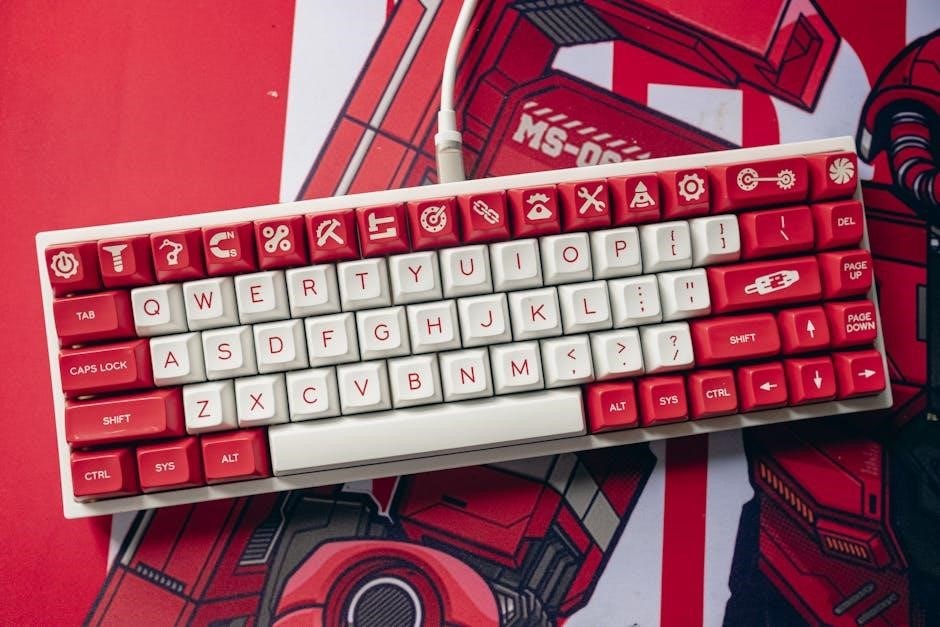
The RK61 utilizes a function (Fn) key to access additional commands. Holding Fn and pressing another key activates secondary functions printed on the keycaps. Common combinations include Fn + Del for Backspace, Fn + Ins for Home, and Fn + End for Page Up. Adjusting backlight modes, volume control, and media playback are also accessible via Fn key combinations.
Specific combinations may vary depending on the firmware version (QMK/VIA). Refer to the official RK Gaming website or the VIA configurator for a complete list of available function key mappings. Customizing these combinations is possible through QMK firmware, allowing you to tailor the keyboard to your specific workflow and preferences. Experiment to discover the most efficient shortcuts for your needs.
Battery Life and Charging
The RK61 features a built-in rechargeable battery, providing wireless freedom. Typical battery life ranges from 5 to 10 hours of continuous use, depending on backlight brightness and usage patterns. A full charge typically takes approximately 3-4 hours using a USB-C cable connected to a 5V power source.
A low battery indicator will illuminate, signaling the need to recharge. While charging, the backlight may pulse or display a specific charging animation. Avoid using the keyboard while charging for optimal battery health. Fully discharging the battery frequently can reduce its lifespan; it’s best to recharge when the indicator appears.
Cleaning and Maintenance
To maintain your RK61 keyboard’s pristine condition, regular cleaning is recommended. First, disconnect the keyboard from your computer. Use a can of compressed air to remove dust and debris from between the keycaps. For stubborn dirt, dampen a microfiber cloth with a small amount of isopropyl alcohol (ensure it’s not dripping wet!). Gently wipe the keycaps and keyboard surface.
Avoid using harsh chemicals or abrasive cleaners, as these can damage the keycaps or finish. To remove keycaps for deeper cleaning, use a keycap puller (sold separately) to avoid damaging the switches. Allow all components to dry completely before reassembling and reconnecting the keyboard.
Software Updates and Downloads
Keeping your RK61’s firmware up-to-date ensures optimal performance and access to the latest features. Visit the official Royal Kludge website (rkgaming.com) to download the latest firmware versions and VIA configurator software. Regularly check for updates, as Royal Kludge frequently releases improvements and bug fixes.
Download the appropriate files for your specific RK61 model (RK61, RK61 Plus, RK61 Pro). Follow the detailed instructions provided on the website for flashing the firmware – incorrect flashing can potentially render your keyboard unusable. The VIA software allows for advanced key remapping and customization options. Ensure your computer meets the system requirements before downloading and installing any software.
Technical Specifications
The RK61 boasts a compact design with dimensions of approximately 295 x 103 x 40mm (length x width x height) and a weight of around 600g. It supports USB, Bluetooth, and 2.4G connectivity options. Available key switch types include Red, Blue, Brown, and Black, catering to diverse user preferences. The keyboard features RGB or single LED backlighting, depending on the model.
It utilizes a durable ABS keycap material and offers a polling rate of 1000Hz. The RK61 is compatible with both Windows and macOS operating systems. Battery capacity varies by model, typically ranging from 1200mAh to 1850mAh, providing extended wireless usage. The keyboard supports QMK/VIA firmware for advanced customization.
Dimensions and Weight
The RK61 keyboard is designed for portability, featuring compact dimensions of approximately 295 x 103 x 40 millimeters (length x width x height). This small form factor makes it ideal for travel and limited desk spaces. Its lightweight construction contributes to its portability, with a weight of around 600 grams (approximately 1.32 pounds).
These measurements ensure the RK61 fits comfortably within a backpack or carrying case. The precise dimensions may vary slightly depending on the specific model (RK61, RK61 Plus, RK61 Pro), but generally maintain a similar compact profile; The keyboard’s size doesn’t compromise functionality, offering a full typing experience in a reduced footprint.
Key Switch Types
The RK61 keyboard offers a variety of key switch options to cater to different user preferences. Commonly available switches include Gateron Red, Blue, and Brown. Gateron Red switches are linear and quiet, ideal for gaming and general typing. Gateron Blue switches are tactile and clicky, providing audible feedback with each keystroke, favored by typists. Gateron Brown switches offer a balance between tactile feedback and quiet operation.
Some RK61 models may also support other Gateron or compatible switches. The choice of switch significantly impacts the typing experience, influencing feel, sound, and responsiveness. Users can select the switch type that best suits their individual needs and preferences for optimal comfort and performance.
Warranty Information
Royal Kludge provides a warranty for the RK61 keyboard, covering defects in materials and workmanship under normal use. The standard warranty period is typically one year from the date of original purchase. This warranty does not cover damage resulting from misuse, accidents, modifications, or unauthorized repairs.
To claim warranty service, customers must provide proof of purchase and a detailed description of the defect. Contact Royal Kludge customer support for assistance with warranty claims and return authorization. The warranty is void if the keyboard has been disassembled or altered without prior approval. Please retain your purchase receipt for warranty purposes.
Safety Precautions
When using the RK61 keyboard, avoid exposing it to extreme temperatures or humidity. Do not disassemble the keyboard, as this will void the warranty and may pose an electrical hazard. Keep liquids away from the keyboard to prevent short circuits and damage. Use only the provided USB cable or a certified replacement for charging and data transfer.
Do not attempt to repair the keyboard yourself; contact Royal Kludge customer support for assistance; Ensure the keyboard is disconnected from power during cleaning. Avoid using abrasive cleaners, as they may damage the keycaps or finish. Handle the keyboard with care to prevent physical damage from drops or impacts. Follow these precautions for safe and reliable operation.
Frequently Asked Questions (FAQ)
Q: My RK61 stopped working – no lights or function? Ensure the cable is securely connected or try a different USB port. If using Bluetooth, re-pair the device. Q: How do I change backlight modes? Use the Function key combinations detailed in the manual to cycle through the 17 available modes. Q: Can I replace the keycaps? Yes, the RK61 uses standard keycaps, allowing for customization.
Q: What if the keyboard isn’t recognized? Check driver installation and ensure the keyboard is in the correct mode (USB or Bluetooth). Q: Where can I find the latest software? Visit the Royal Kludge website for software updates and downloads. Q: Is this keyboard compatible with QMK/VIA? Yes, the RK61 supports QMK/VIA for advanced customization.